Synchronize Media Files (since v9)
Setup the Synchronizer
Since v9 Rclone is added as unified tool to synchronize to several storage types. The former sync options are described in the legacy section.
| Storage Type | Description |
|---|---|
| FTP | Great for immediate online backups. Also very simple to setup qr code sharing if the uploaded files are made automatically accessible via HTTPS by the service provider. |
| NextCloud | Could be a good option if the media shall be made accessible in a gallery provided by Nextcloud. The photobooth-apps included sharepage cannot be setup automatically in this scenario. |
| S3 | S3 object stores are available from many cloud infrastructure providers. It works well but needs a CDN in front of the bucket for HTTPS and full sharepage functionality. Depending on the provider the costs can be as low as a few cents per month. |
| local filesystem | This type is used for data duplication only, not intended to be used to share QR codes. |
| other, see rclone overview custom |
The general procedure to setup synchronization is as follows. A full example using a FTP/HTTPs server is described in the next chapter.
- In the Admin Center go to Configuration → Synchronizer → Set Enabled to on, save config and apply.
- Rclone is started in the background during the app's runtime, you can access the Rclone web-ui on the same device browsing to http://localhost:5573.
- Configure a remote in Rclone. There are many storage types supported, please see the Rclone+Service provider documentation how to setup. The remotes can be configured easily in Rclone's web-ui.
- After having the remote configured, in the app's synchronization configuration, add a the newly created remote name.
- Save the configuration.
- Take a picture and check the logs for issues during uploading.
- If there are no errors, double check at the service provider webpage, that all media files have been uploaded as expected.
Reference Setups
INFO
Following description is to setup the file synchronization using Rclone. It is a prerequisite to allow for QR code sharing to be setup separately.
All targes, Rclone supports, can be used. Some might work better than others, and not all setups are described here. The most straight forward way to allow for QR code shares is probably FTP on a shared webspace that supports HTTPS (shared webhosting).
Exemplarily, a setup using a FTP-Server is described in the following sections. For all supported services see the rclone overview.
Rclone Remote Setup
Assumptions for the FTP-Server setup example
- FTP-Server:
ftpserver.example.com - FTP-Subdir:
/photos/ - HTTP-URL:
https://photos.example.com/, - Verified: Files uploaded to the folder
photoson the FTP-Server are available athttps://photos.example.com/
Rclone Configuration
With the photobooth-app started, open a browser on the same device running the photobooth-app and browse to http://localhost:5573. It should display the Rclone WebUI Dashboard. You can use it to administer all Rclone related aspects of the synchronization, thus as create/modify remotes and monitor Rclone's status.
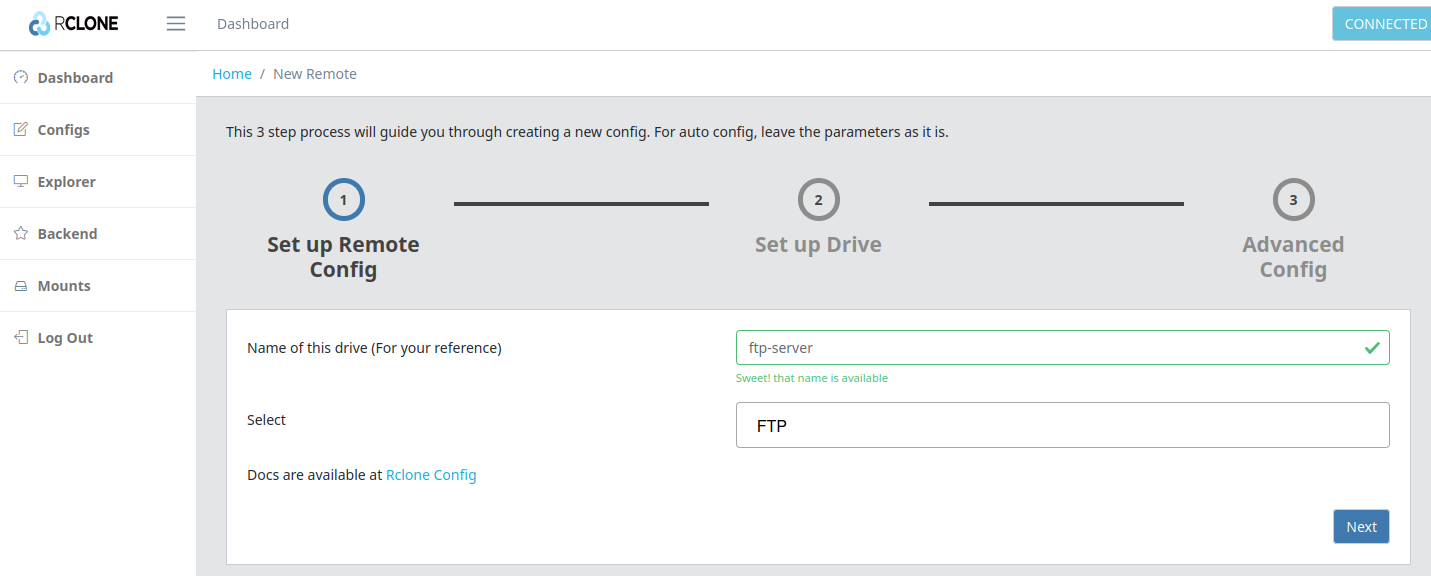
The result is an entry in the rclone config similar as follows, given for your reference here:
[ftp-server]
type = ftp
host = ftpserver.example.com
pass = GP**************BqKY5
After the configuration is finished, please ensure in the Rclone WebUI → Explorer that the remote loads properly. If you encounter issues, please research the internet to properly setup Rclone remotes.
App Configuration
DANGER
The app will delete unknown files from the target without further confirmation. Double check to choose the correct subdir as target! The app needs exclusive access to the folder! It is recommended to lock the ftp-server login credentials to a specific folder only to avoid any data loss and data leakage because the credentials are only obfuscated by Rclone in it's configuration file.
Next step is to tell the photobooth-app to use the remote configured. In the admin center go to the synchronization configuration and add a new remote to the list:
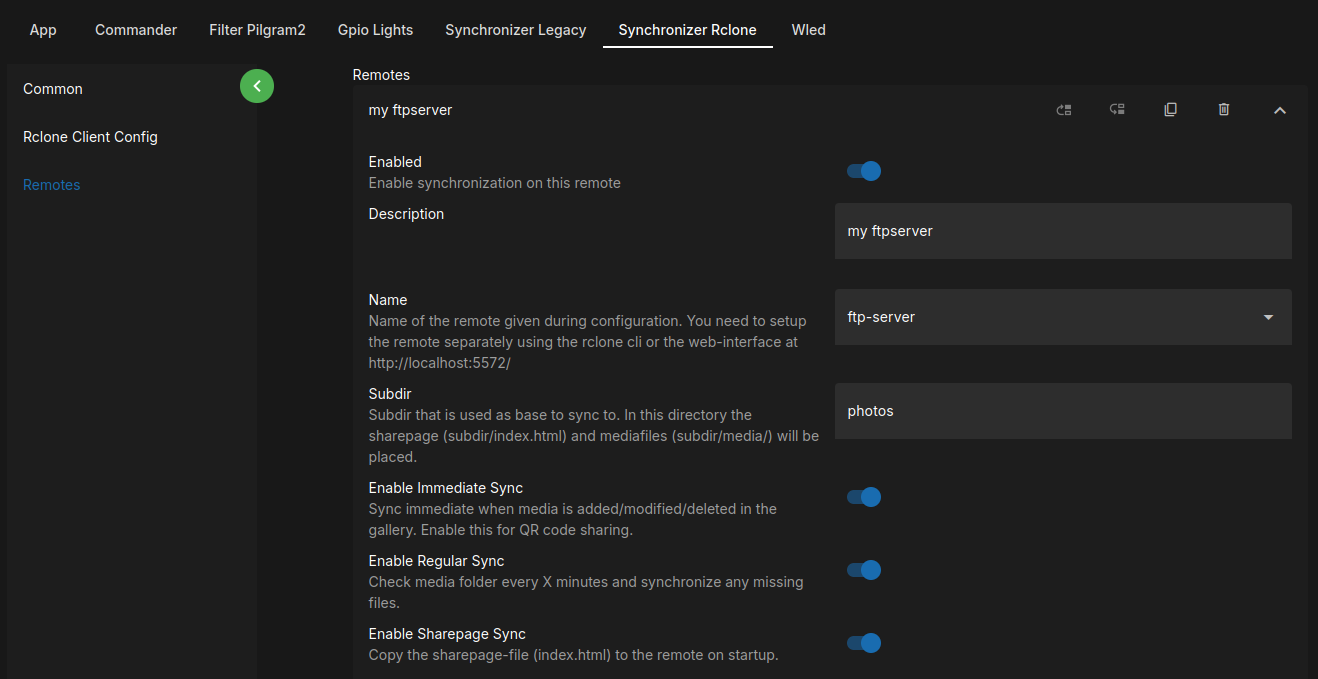
It's recommended to enable all synchronization types usually:
Enable Immediate Syncto upload new/modified media files directly - a prerequisite for QR code sharing.Enable Regular Syncto check every 5 minutes (default) if any files need to be synchronized. If the internet connection is weak and an immediate upload failed, this could help to ensure a consistent state on the remote. Also, this option is useful for backup copies.Enable Sharepage Syncto copy the sharepage to the remote. If you want to use the sharepage, enable this, otherwise disable. Find more details in the description to share using QR codes
Generate QR Codes
Want to display QR codes in the gallery for a remote? Check the separate description how to generate QR codes
Local Filesystem
Synchronizing to the local filesystem could be used to copy data to external usb drives to backup the media files.
Rclone Setup (Local)
For a local target, there is no setup in rclone required.
Synchronizer Setup (Local)
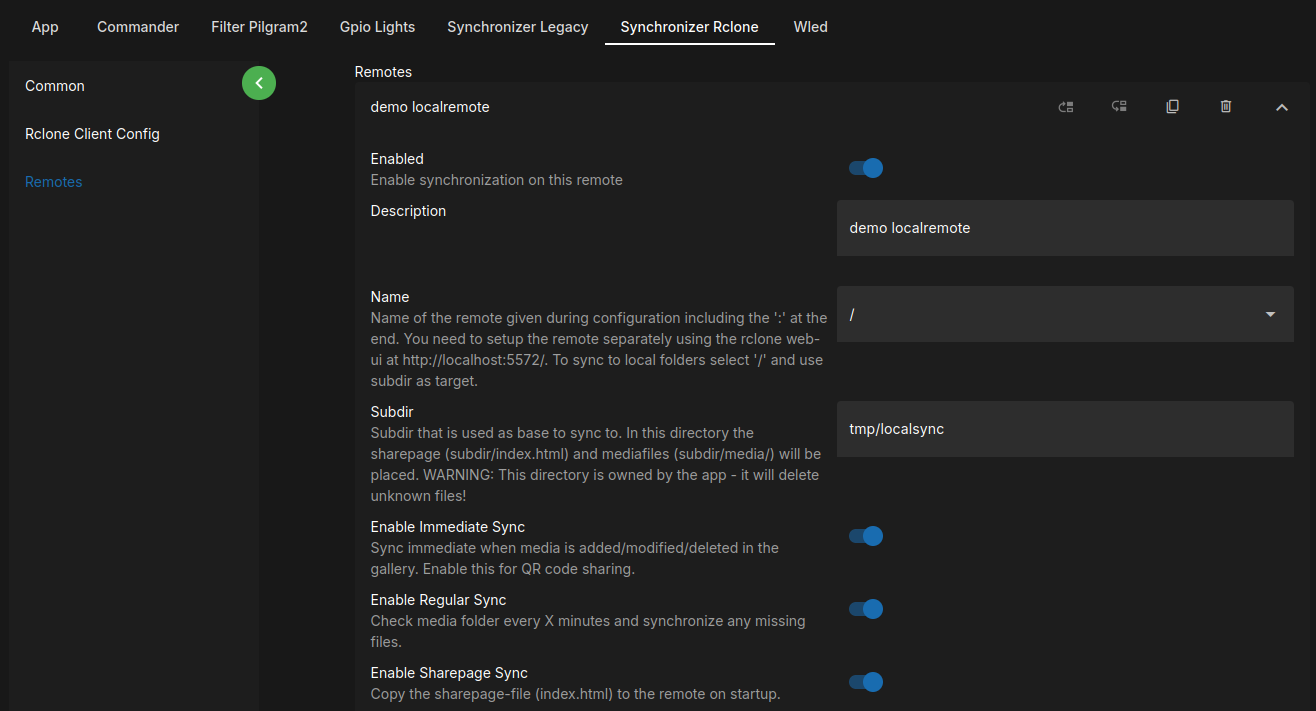
To tell the app to copy to a local folder, set the remote to "/". In the admin center go to the synchronization configuration and add a local folder to the to the list. The subdir is interpreted absolute, this is /tmp/localsync in the example.
DANGER
The app will delete unknown files from the target without further confirmation. Double check to choose the correct subdir as target!